
Silk Mobile
Table of Contents (Homepage)
- Overview
- Setting Up
- Getting Started
- How To
- Connecting Devices And Emulators
- Preparing Applications For Testing
- Managing Applications
- Recording Tests
- Working With Test Commands
- Adding Commands To Your Scripts
- Object Commands
- Click
- ClickCoordinate
- ClickIn
- ClickOffset
- Drag
- ElementGetProperty
- ElementGetTableRowsCount
- ElementListPick
- ElementListSelect
- ElementListVisible
- ElementScrollToTableRow
- ElementSendText
- ElementSetProperty
- ElementSwipe
- ElementSwipeWhileNotFound
- GetAllValues
- GetElementCount
- GetElementCountIn
- GetTextIn
- IsElementBlank
- IsElementFound
- IsFoundIn
- LongClick
- RunNativeAPICall
- SendWhileNotFound
- VerifyElementFound
- VerifyElementNotFound
- VerifyIn
- WaitForElement
- WaitForElementToVanish
- GetCoordinateColor
- DragDrop
- Application Commands
- Device Commands
- Web (Hybrid) Specific Commands
- Utilities Commands
- Monitoring Commands
- Configuration Commands
- ExtractLanguageFiles
- SetDefaultClickDownTime
- SetDefaultTimeOut
- SetDefaultWebView
- SetDragStartDelay
- SetInKeyDelay
- SetKeyToKeyDelay
- SetLanguage
- SetLanguagePropertiesFile
- SetShowImageInReport
- SetShowPassImageInReport
- SetShowReport
- SetSpeed
- SetThrowExceptionOnFail
- SetWebAutoScroll
- StartStepsGroup
- StopStepsGroup
- TextFilter
- Miscellaneous Commands
- Controlling Element Identification Rules
- Editing Test Objects
- Executing Test Scripts
- Report Of Executed Test
- Working From Code Environment
- Continuous Integration
- Layout Verification Tests
- Use Device Vitals Monitors
- Troubleshooting
- Terminology
Using Visual Studio Add-On
Using the Silk Mobile Add-On for VisualStudio
Step 1: Run Visual Studio.
Step 2: In Silk Mobile - Open or create a new project, record steps, and save the script.
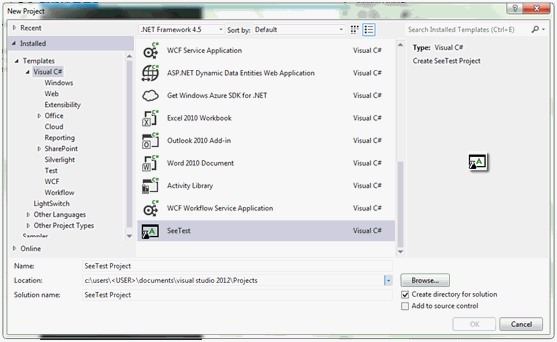
Step 3: In Visual Studio - Create a new Silk Mobile project:
-
Choose FILE -> New -> Project from Visual Studio menus or choose "New Project…" from the Start Page.
-
In the left-hand "Template" hierarchy tree, under Installed ->Templates select "Visual C#" node.
-
Locate and select "Silk Mobile" in the template list, and specify the location and name for your Silk Mobile project.
-
Click "OK".
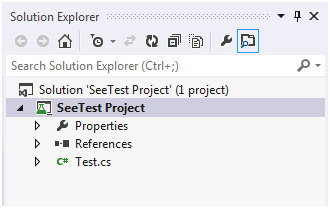
A new project is created, containing the required references for a Silk Mobile C# unit test, and a sample test file "Test.cs".
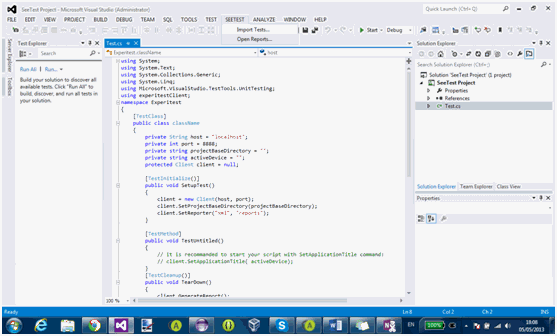
Step 4: Import a test from the currently open project in Silk Mobile:
-
From Visual Studio menus, Choose Silk Mobile -> Import Tests
-
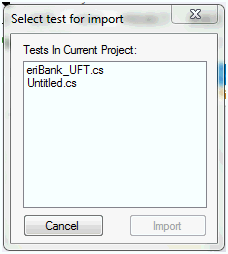
Select the test/s you want to import and click "Import".
The selected test/s are now included in your Silk Mobile project.
Step 5: Modify and run an imported unit test.
Step 6: Launch the test report:
-
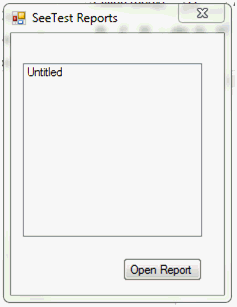
From VisualStudio menus choose Silk Mobile -> Open Report
-
Select a report from the reports list.
-
Click "Open Report".
The selected report is launched on a browser